Phantom Scripts resources are delivered through the Cfx.re asset system. After purchase, the asset is granted to the Cfx account connected to the purchase or keymaster access.
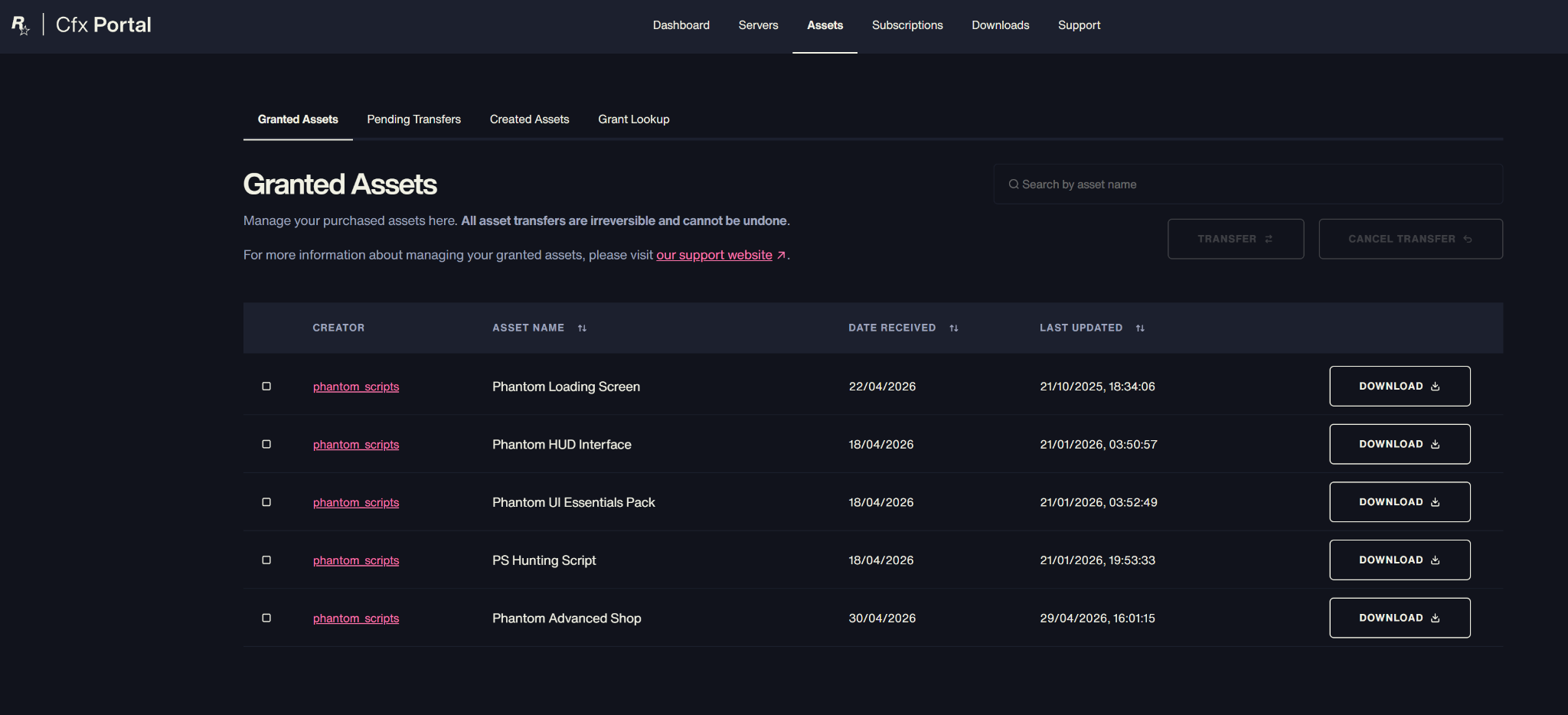
Example: Phantom resources inside the Cfx Portal Assets page.
Where can I find my resources?
You can find your purchased resources on the Keymaster / asset grants page. Open the link and look for the items listed under the phantom_scripts creator. https://keymaster.fivem.net/asset-grants ↗
I can't find my resources
If you cannot see a resource, the purchase was probably made on another Cfx account. Check the account you are logged into or use the transfer guide.
Details
Log in to the correct Cfx account.
Open Cfx Portal / Assets.
Look for resources under phantom_scripts.
Click the Download button.
Notes
Resources appear under Cfx Portal → Assets.
The creator name is phantom_scripts.
If you cannot see the resource, check the Cfx account.
ImportantAlways log in with the same Cfx account linked to your purchase.
CFX AUTH SYSTEM
Transfer script to another account
Transfer a purchased resource to another Cfx account.
Overview
If the resource is on the wrong Cfx account, or your server keys are managed by another account, you can transfer the asset inside Cfx Portal. Transfers can be irreversible, so always check the target username.
Where can I find the owner's name?
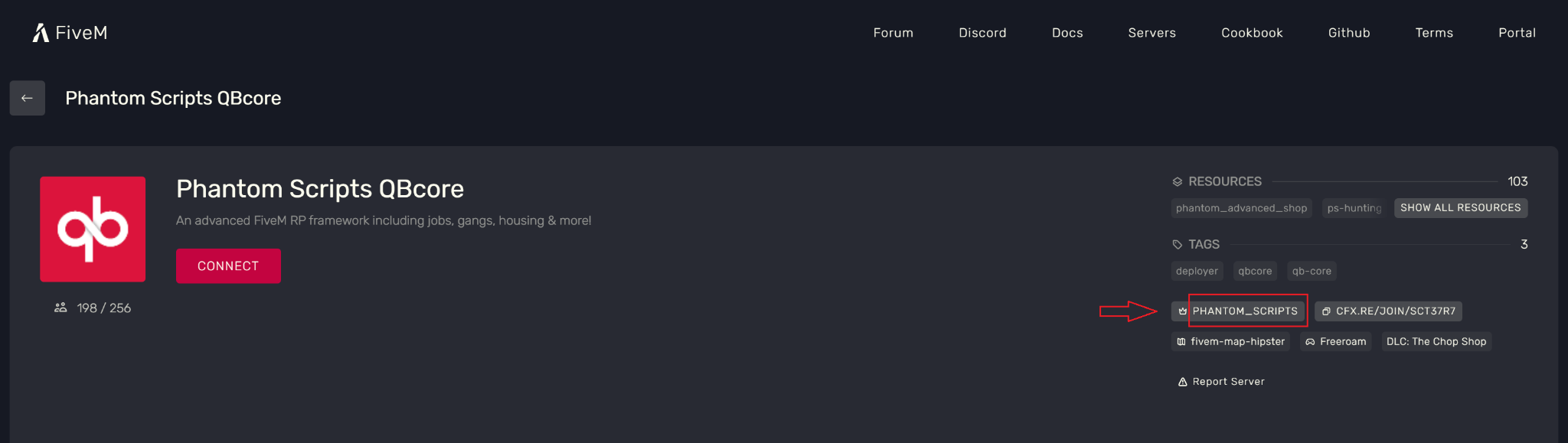
Open the FiveM server list, find your server and check the Owner field in the server details. This is the Cfx username you may need. https://servers.fivem.net/ ↗
Server page and owner field.
I can't find my server in the list
If the server is not listed, check the Cfx auth line in the server console. The short identifier in the link can be different for every server.
Console auth link and server identifier.
Open the server details in your browser
Copy the identifier, then open servers.fivem.net with the /servers/detail/ path and the identifier. This opens the server page where the owner can be seen.
Server details page in browser.
Transferring the resource
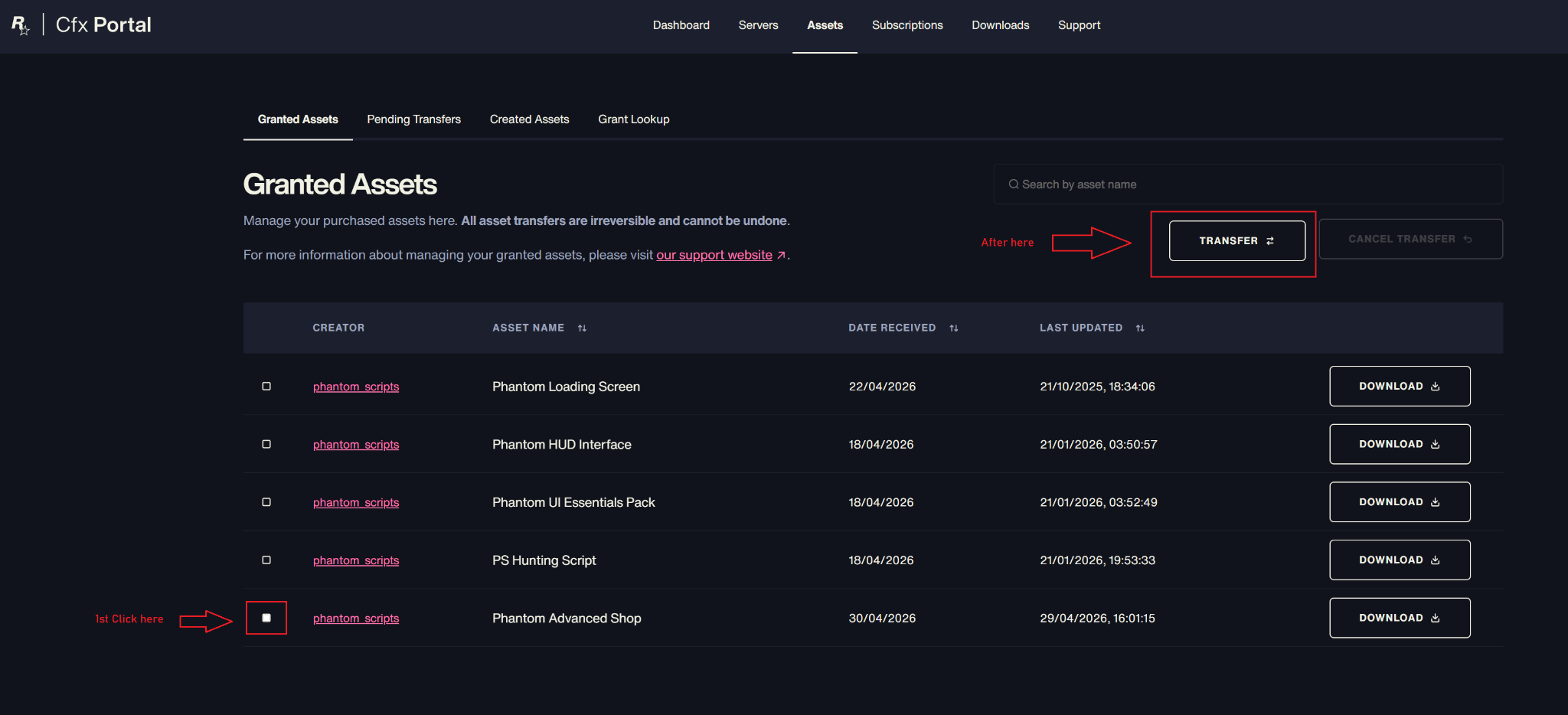
Log in to Cfx Portal, open Assets, select the resource you want to transfer, then click the Transfer button.
First select the resource, then Transfer.
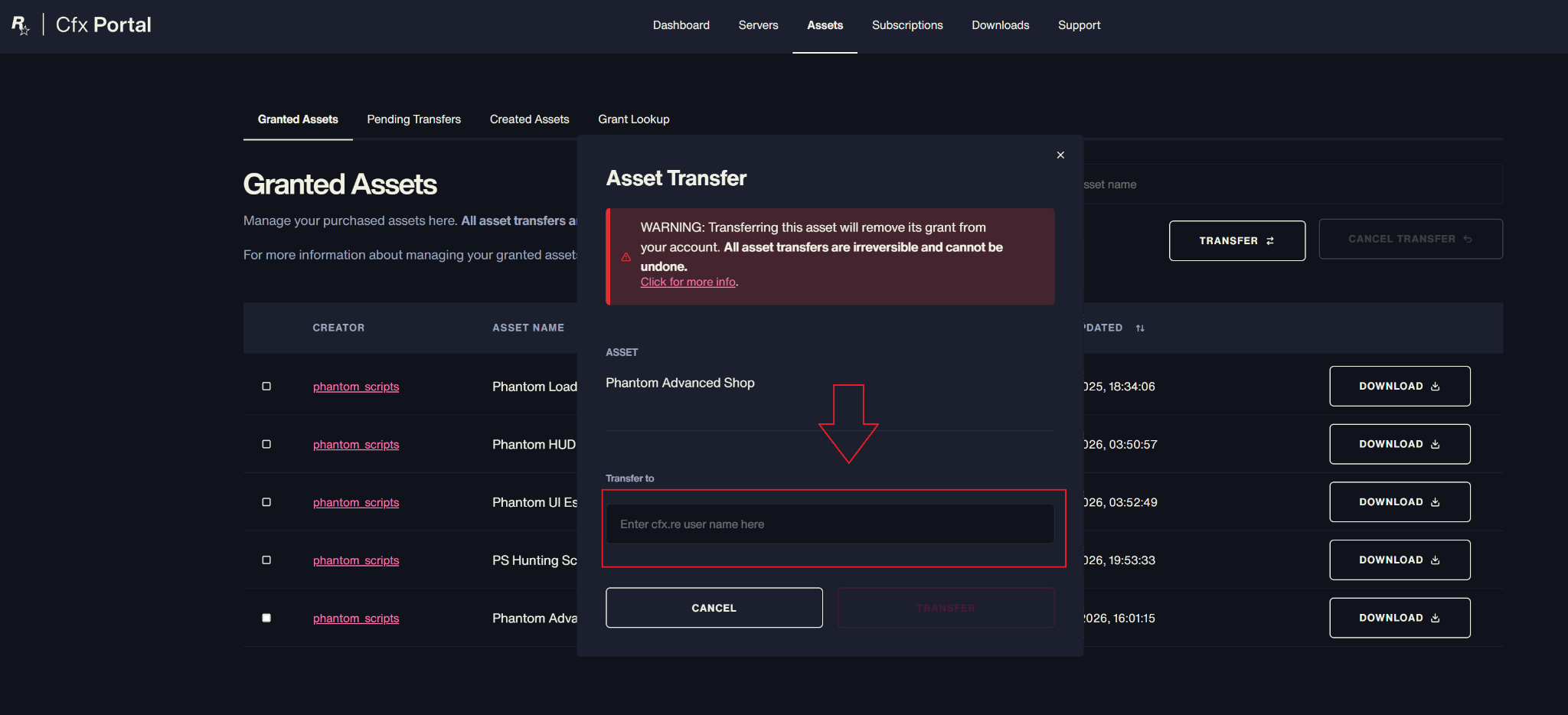
Enter the target Cfx username
In the Asset Transfer popup, enter the username of the Cfx account that should receive the resource. Check the name twice.
Asset Transfer popup and target username field.
Email confirmation
After starting the transfer, Cfx sends a confirmation link by email. Open it, confirm the transfer, and check spam if you do not see it.
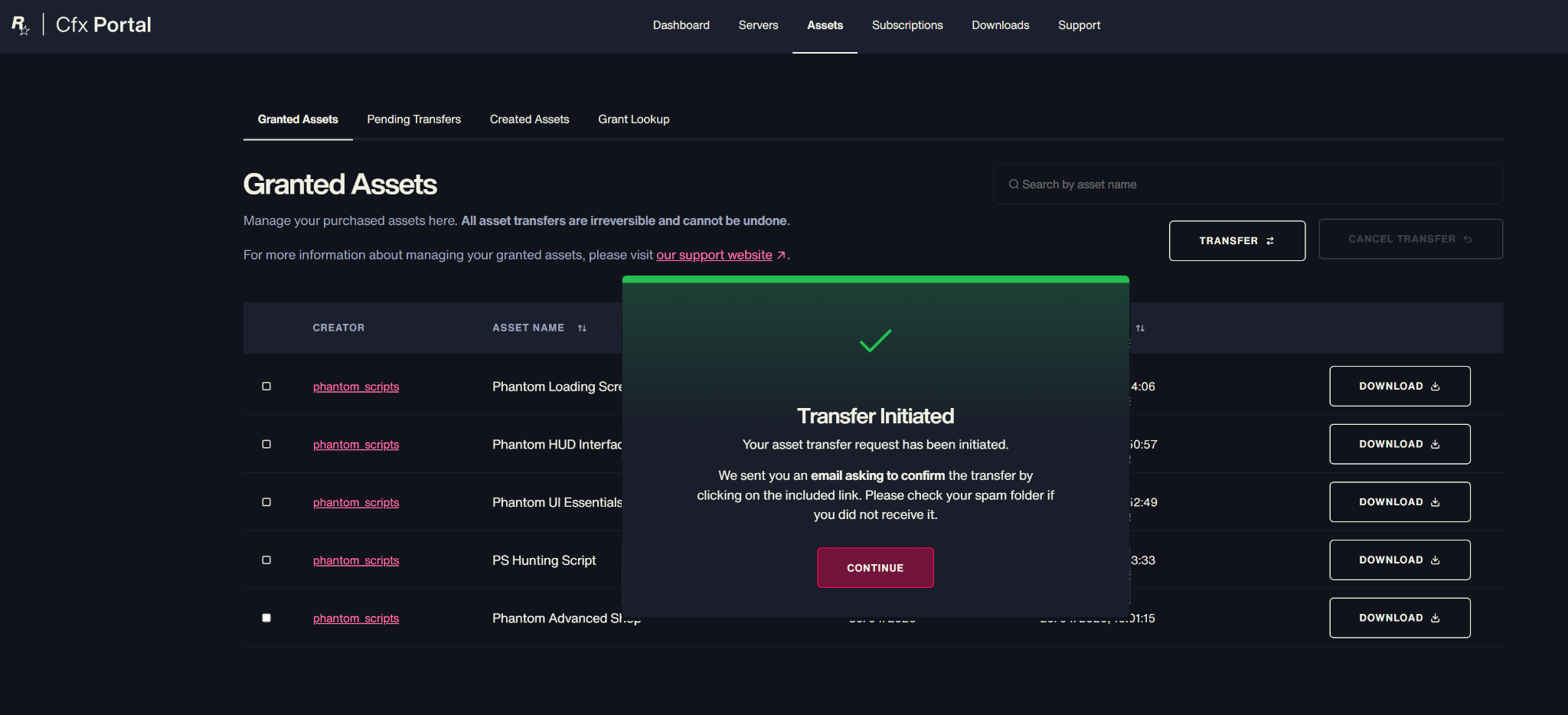
Message shown after a transfer is initiated.
Details
Access to the current owner Cfx account.
The exact target Cfx username.
Email access for confirmation.
Notes
Find the server owner name.
Select the asset in Cfx Portal.
Click Transfer and enter the target username.
Confirm by email.
ImportantOnly start a transfer if you are sure about the target Cfx username.
CFX AUTH SYSTEM
Error: You lack the required entitlement
What this console error means and how to fix it quickly.
Overview
This error can appear when the server cannot verify that it has permission to use the resource. There are several possible causes: wrong Cfx account, missing restart, or incorrect Windows / server time sync.
You lack the required entitlement to use ps_hunting
Why does this happen?
The Cfx auth check depends on the asset, the server owner account and the system time being correct. If one of these is wrong, the server console may show an entitlement error.
I bought the script with another account
If the purchase is not on the Cfx account that manages the server, open the Transfer script to another account guide and transfer the asset to the correct account.
I have not restarted the server
After adding a resource, transferring an asset, or changing entitlement, always restart the server. Many entitlement errors disappear after a clean restart.
Operation system doesn't have the right time?
Open time.is, choose the server location, and check whether the server time is accurate. If it is more than 1 minute ahead or behind, fix the time sync, otherwise the auth issue may continue. https://time.is/ ↗
How do I sync time?
In this quick video, we show how to fix the Windows Internet Time Sync error, which can also cause FiveM server auth and entitlement problems.
Details
Check that the purchase is on the same Cfx account as the server owner.
Restart the server after adding or transferring the resource.
Check Windows / server time because incorrect time can cause auth issues.
Notes
If you bought it on another account, use the Transfer guide.
If you just added the resource, restart the server.
If the OS time is more than 1 minute ahead or behind, fix time sync.
ImportantMain video topic: how to fix the Windows Internet Time Sync error.
CFX AUTH SYSTEM
Error: syntax error near '<l1>'
How to fix this error? Simple: check the upload, then update your server.
Overview
There are two main things to check with this error. First, the resource file structure may have been damaged during upload. Second, your FiveM server artifact may be outdated and needs to be updated.
Why does this happen?
1. FileZilla or an incorrect FTP transfer mode may damage the script file structure. WinSCP is recommended, or use Binary mode if you use FileZilla. 2. If you drag and drop the resource file-by-file through Remote Desktop, it can also damage the upload. Upload the ZIP and extract it on the server instead. 3. Your server artifact is outdated, so the resource cannot load correctly.
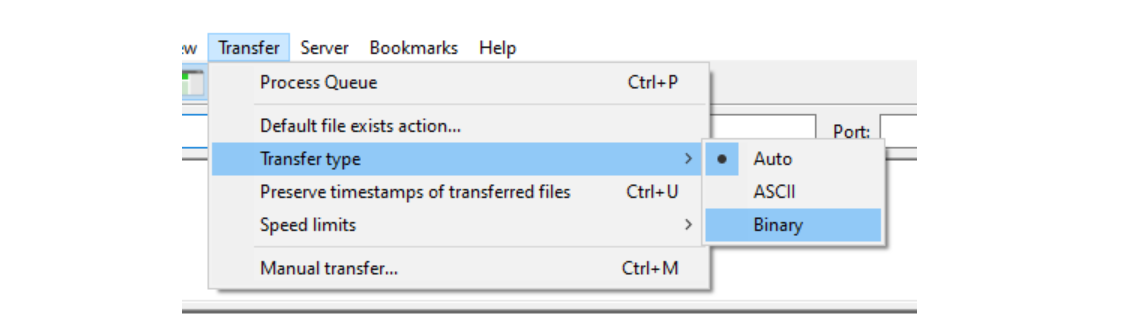
FileZilla set binary mode
If you are using FileZilla, set Transfer type to Binary mode, then re-upload the whole resource. This helps prevent files from being modified or damaged during upload.
Binary transfer mode
How can I check my version?
Write the version command into your server console. This shows the currently running FiveM artifact version.
How to update?
For Windows servers, check this video. It shows how to download the latest recommended server artifact, replace the old server files, and start the server again.
Linux
1. Download the latest recommended Linux artifact from this page: https://runtime.fivem.net/artifacts/fivem/build_proot_linux/master/ 2. Turn off your server. 3. Delete the cache and alpine folders. 4. Unzip fx.tar.xz with this command: tar -xf fx.tar.xz. 5. Start the server and type version to confirm the new version. https://runtime.fivem.net/artifacts/fivem/build_proot_linux/master/ ↗
Windows
The process is the same for Windows servers, but use the Windows FXServer artifact: https://runtime.fivem.net/artifacts/fivem/build_server_windows/master/ Download it, extract it, then replace the old server artifact files with the new ones. Always make a backup before updating. https://runtime.fivem.net/artifacts/fivem/build_server_windows/master/ ↗
SERVER
Updating server
Quick guide for updating your FiveM server artifacts on Windows and Linux servers.
Overview
Keeping your FiveM server updated is important for stability, compatibility, and avoiding resource-related issues. Here you can find the Windows and Linux artifact links, plus the basic update steps.
Windows update video
For Windows servers, watch this quick video. It shows how to download the latest recommended server artifact, replace the old server files, and start the server again after the update.
Before you update
Before replacing anything, always make a backup of your server folder. Do not delete your resources folder, server.cfg, database files, or custom configuration. Only replace the artifact / server runtime files required by the update.
Linux
1. Download the latest recommended Linux artifact from this page: https://runtime.fivem.net/artifacts/fivem/build_proot_linux/master/ 2. Turn off your server. 3. Delete the cache and alpine folders. 4. Extract fx.tar.xz with this command: tar -xf fx.tar.xz. 5. Start the server and type version in the console to confirm the new version. https://runtime.fivem.net/artifacts/fivem/build_proot_linux/master/ ↗
Windows
The process is the same for Windows servers, but you need to use the Windows FXServer artifact: https://runtime.fivem.net/artifacts/fivem/build_server_windows/master/ Download the latest recommended build, extract it, then replace the old server artifact files with the new ones. After updating, restart the server and check it with the version command. https://runtime.fivem.net/artifacts/fivem/build_server_windows/master/ ↗
After updating
Start the server, watch the console, and check for any artifact or resource loading errors. If everything looks correct, type the version command and confirm that the new artifact version is running.
SERVER
onesync
How to enable and check OneSync on a FiveM server.
Overview
OneSync must be enabled for many modern FiveM resources to work correctly. If OneSync is off or set to legacy, some script features may not work properly or may not start at all.
Enable OneSync in server.cfg
The easiest method is to add the OneSync setting to your server.cfg file. This makes the server enable OneSync automatically when it starts.
# enable OneSync (required for server-side state awareness)
set onesync true
Enable OneSync with startup command
Another option is to add it as a startup command. This is useful if you manage server launch settings through a hosting panel or startup command line.
+set onesync true
How to check the result
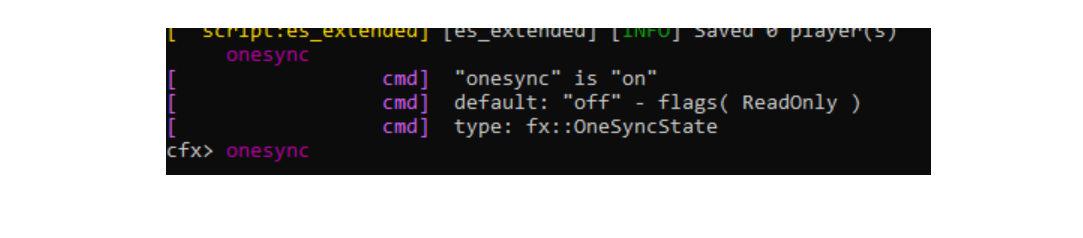
After setting it up, restart your server and type this into the server console: onesync. The correct result is when the console shows that OneSync is on.
OneSync console check: the value should be on.
Important note
OneSync should always be set to on. If you see legacy or off, that is not correct and some resources may not work properly.
Known issues
TXAdmin or a hosting panel may overwrite the OneSync setting, so even if server.cfg looks correct, the value may not change on startup. Also check that you do not have multiple set onesync commands in different places with different values.
ADMINISTRATION
Open Tickets
How to open a support ticket on the Phantom Scripts Discord server.
Overview
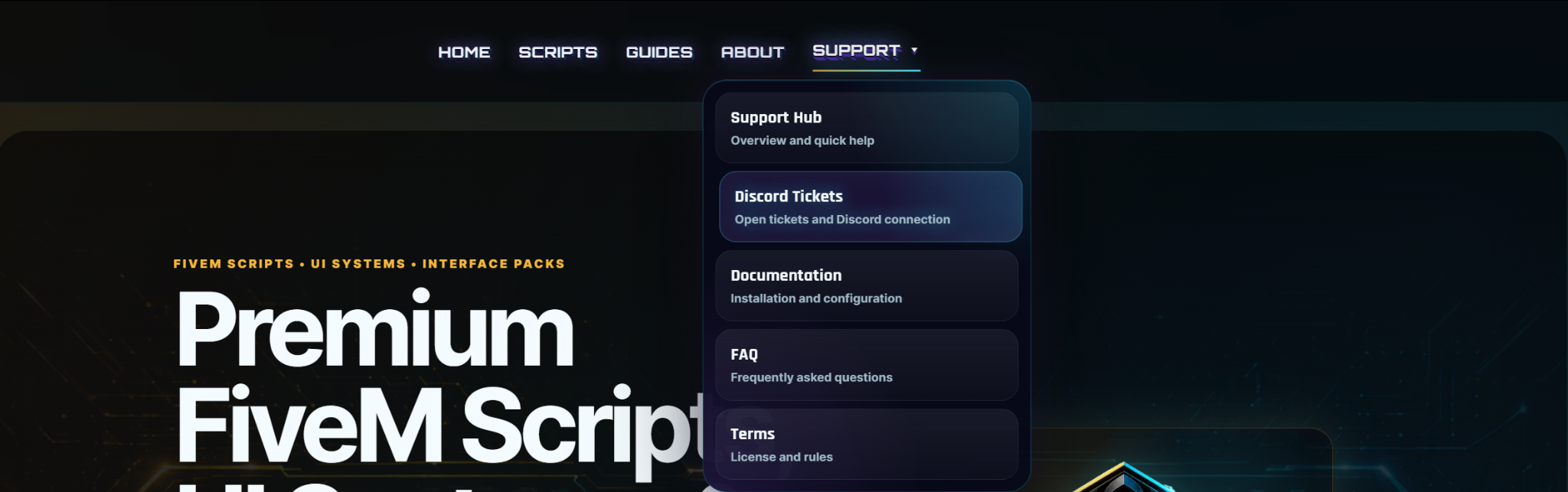
If you need help with a Phantom Scripts resource, the fastest way is through the Discord ticket system. First connect your Discord account, then open a ticket, and the system will redirect you to the correct Discord ticket channel.
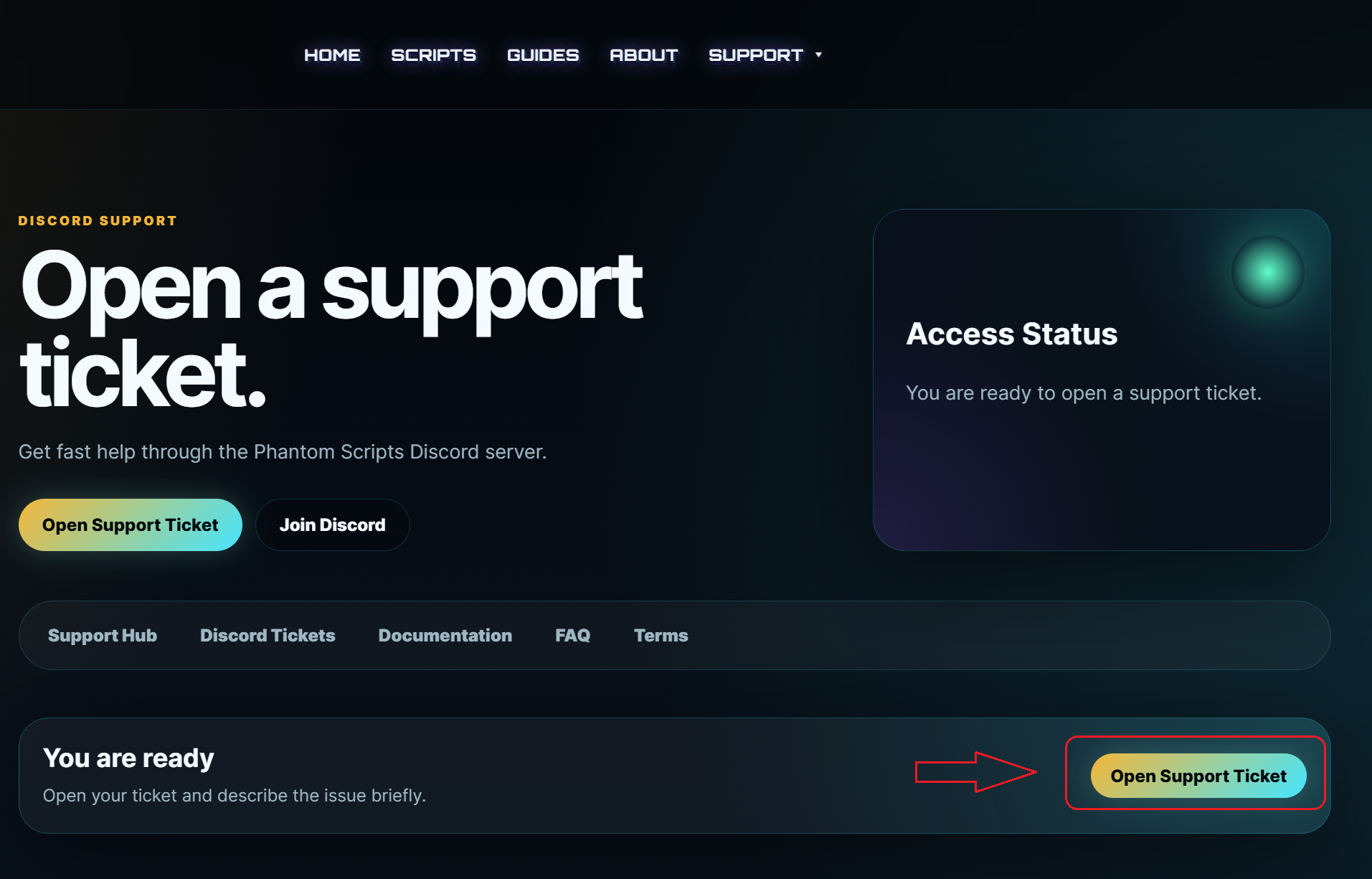
1. Click the Open Support Ticket button
First open the Phantom Scripts support page, then click the Open Support Ticket button. If your Discord account is already connected, the system is ready to open your ticket.
Open Support Ticket button.
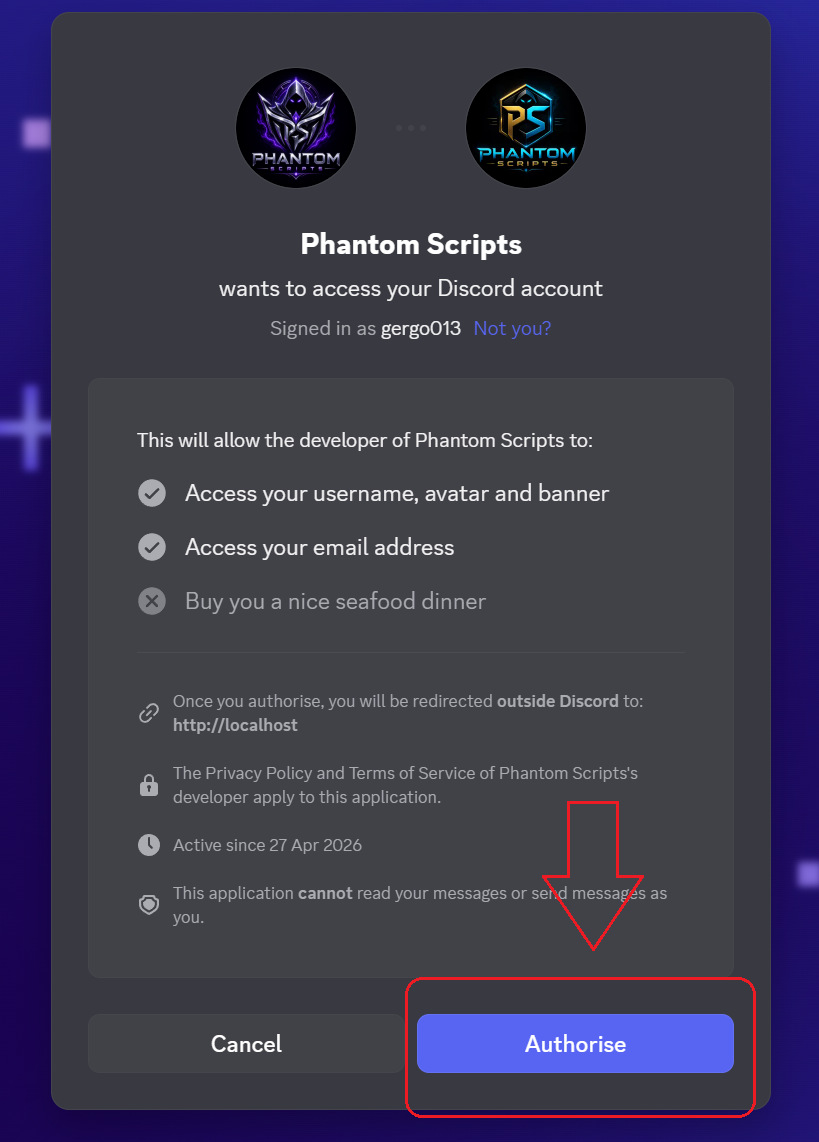
2. Authorise the Discord connection
In the Discord authorisation window, click Authorise. After that, you will be redirected back to the Phantom Scripts website, where the Open Support Ticket button becomes available.
Discord Authorise screen.
3. Connect your Discord account if required
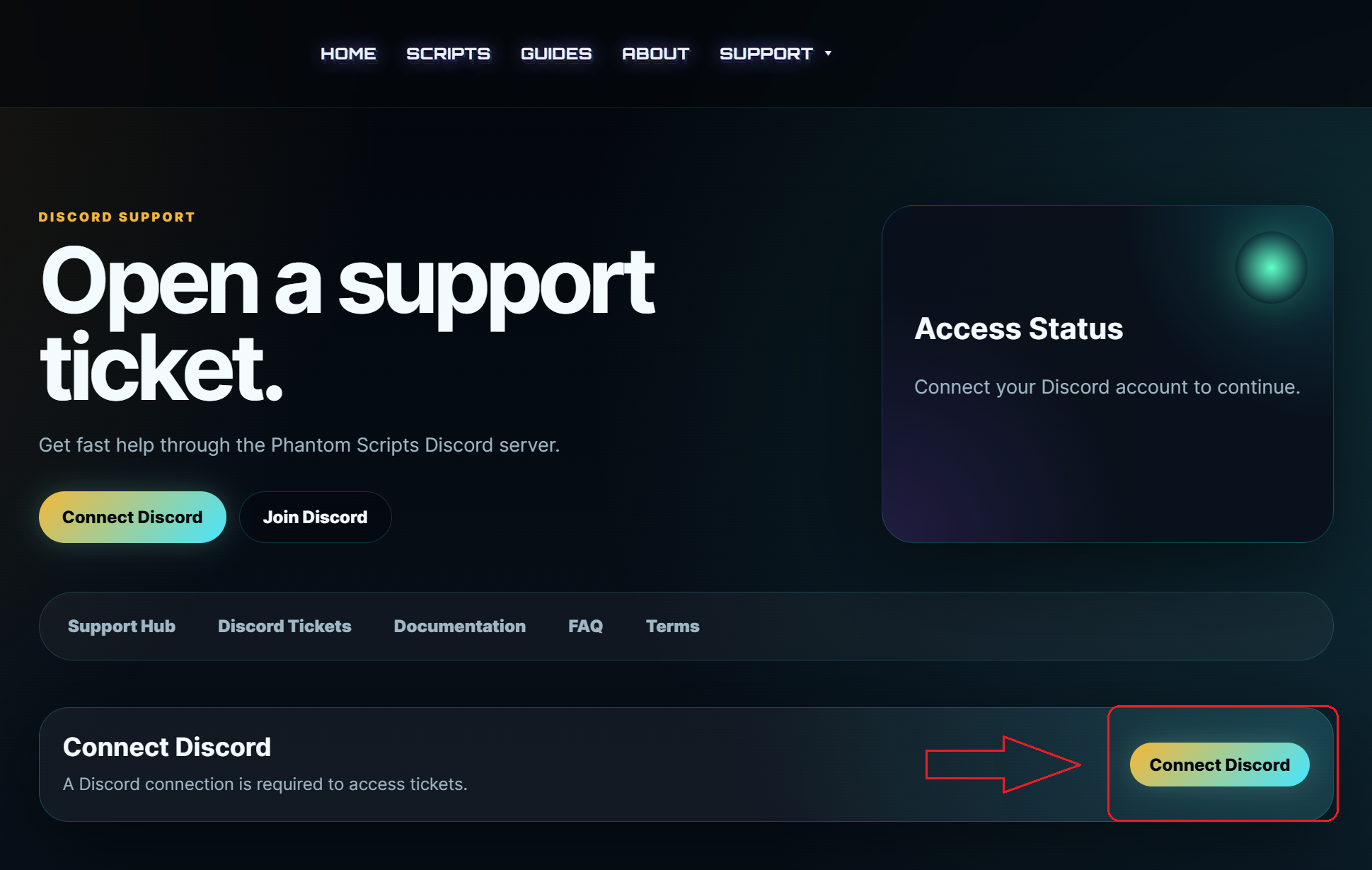
If your Discord account is not connected yet, the website will show the Connect Discord button. Click it and connect your Discord account so the ticket system can identify you.
Connect Discord button.
4. Follow the Discord ticket channel instructions
On Discord, choose what type of help you need. You can open a ticket for installation help, bug reports, license or purchase questions, configuration help, update requests, or pre-sale questions. Many common questions will receive an automatic answer or a documentation redirect, which helps speed up the support process.
Phantom Scripts Discord ticket information.
When should you open a ticket?
Open a support ticket if you need installation help, want to report a bug, have a license or purchase issue, need configuration help, request an update, or have a pre-sale question.
What should you prepare before opening a ticket?
Please prepare the following: script name, order ID or Phantom Scripts username, server framework, inventory system, target system, script version, error logs, and a screenshot or video if available. The more accurate information you provide, the faster we can help.
Important rules
Do not open multiple tickets for the same issue. A team member will reply as soon as possible. Before opening an installation or configuration ticket, please also check the documentation. Never share passwords, database credentials, private tokens, or payment card details inside a ticket.
ADMINISTRATION
Forgot your password?
How to securely reset the password for your Phantom Scripts account.
Overview
If you cannot access your Phantom Scripts account, use the Forgot Password option. The system sends a secure, time-limited reset link to your email address, allowing you to create a new password.
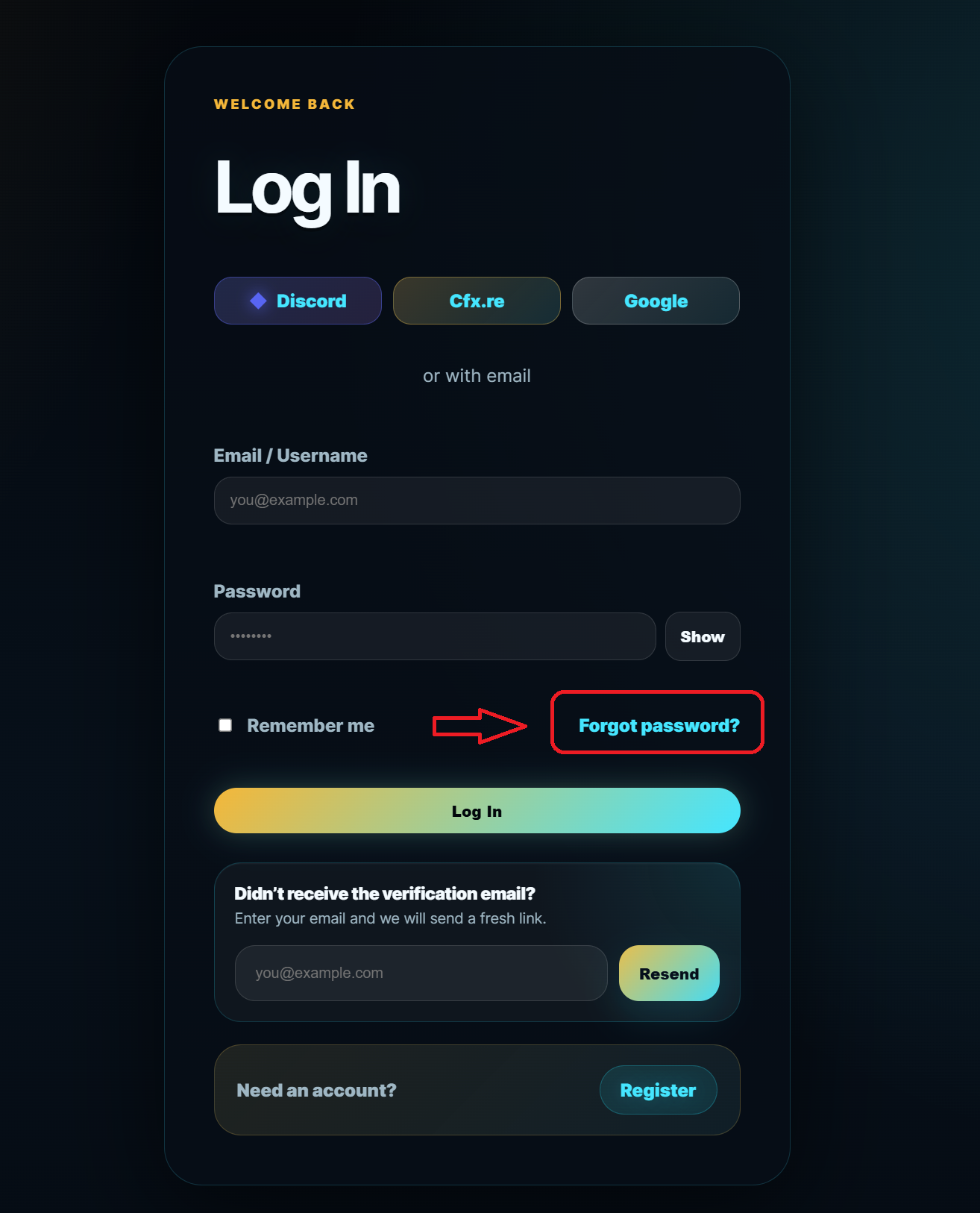
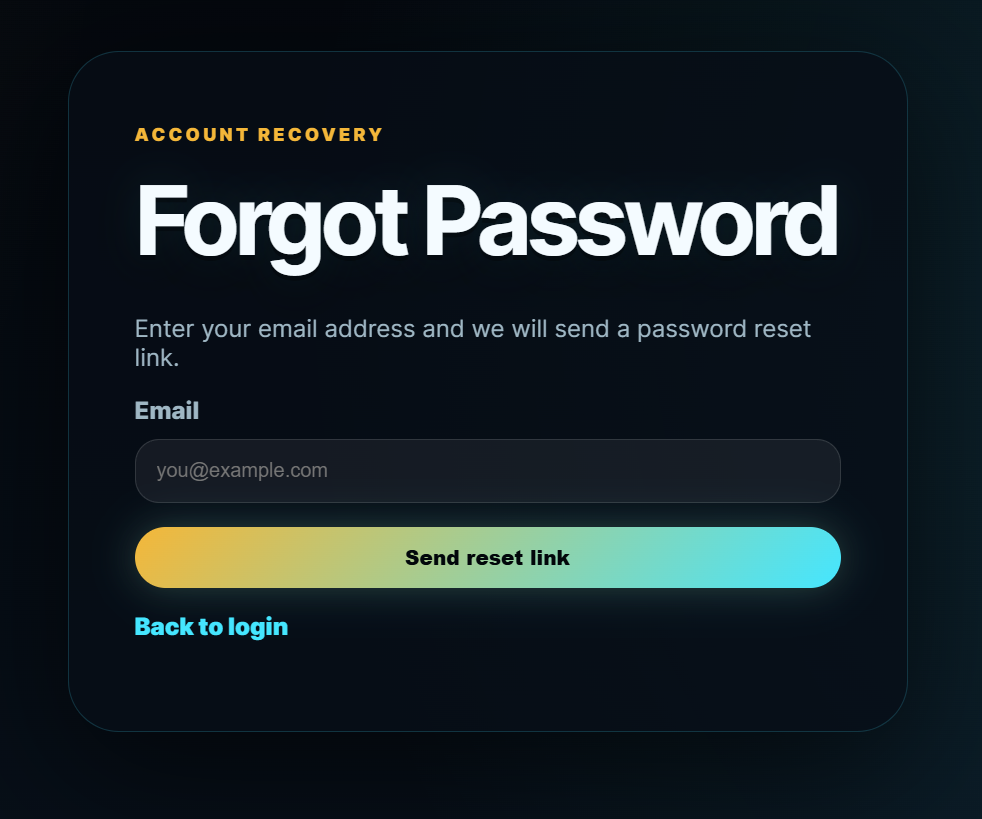
On the login page, click the Forgot password link.
1. Open the Forgot Password page
On the login page, click the Forgot password link. This opens the password recovery page where you need to enter the email address connected to your account.
Enter your email address and send the reset link.
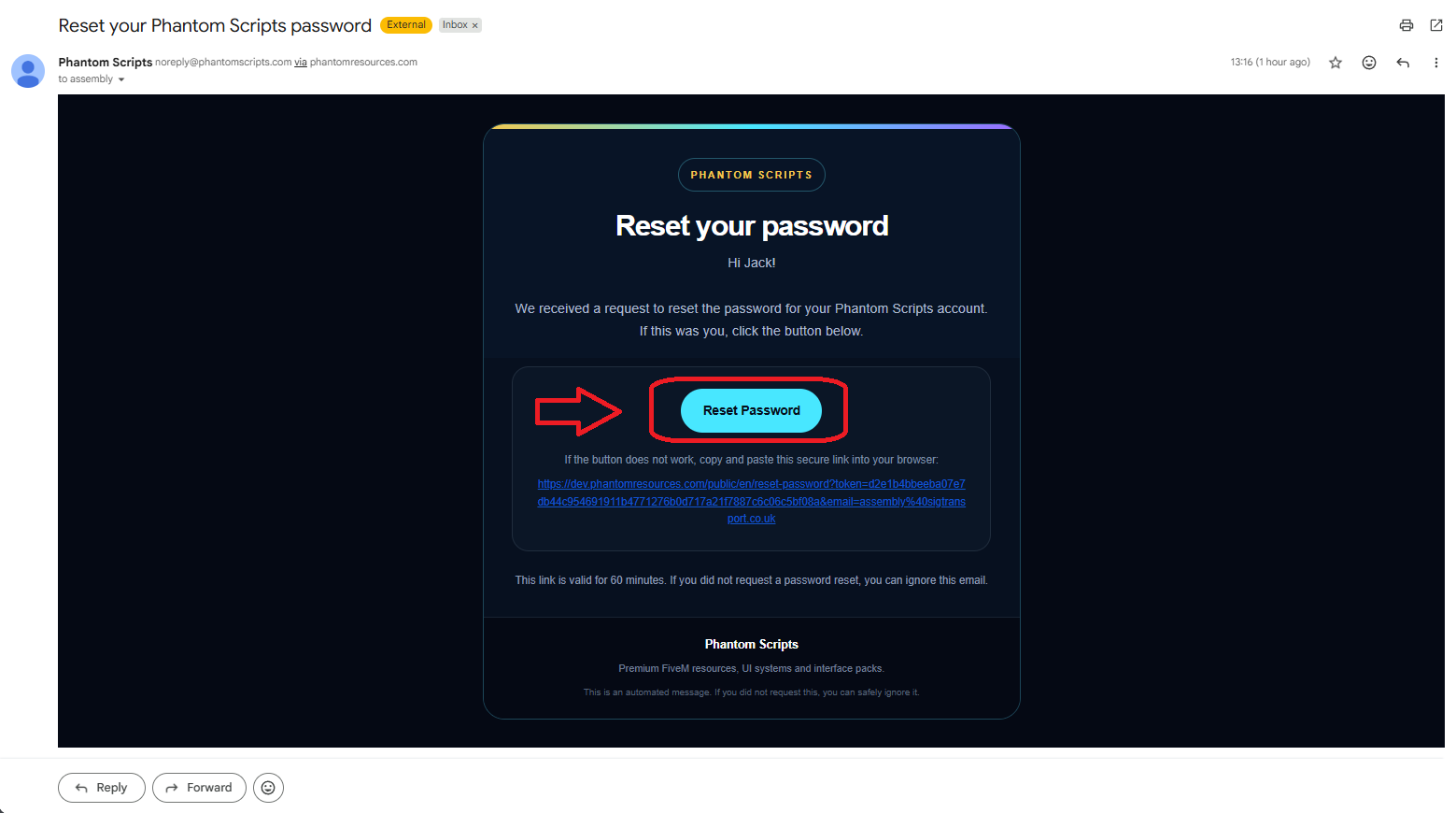
2. Check your email
The system sends a password reset email. Open the email and click the Reset Password button. If the button does not work, copy the secure link below it and paste it into your browser.
Inside the reset email, click the Reset Password button.
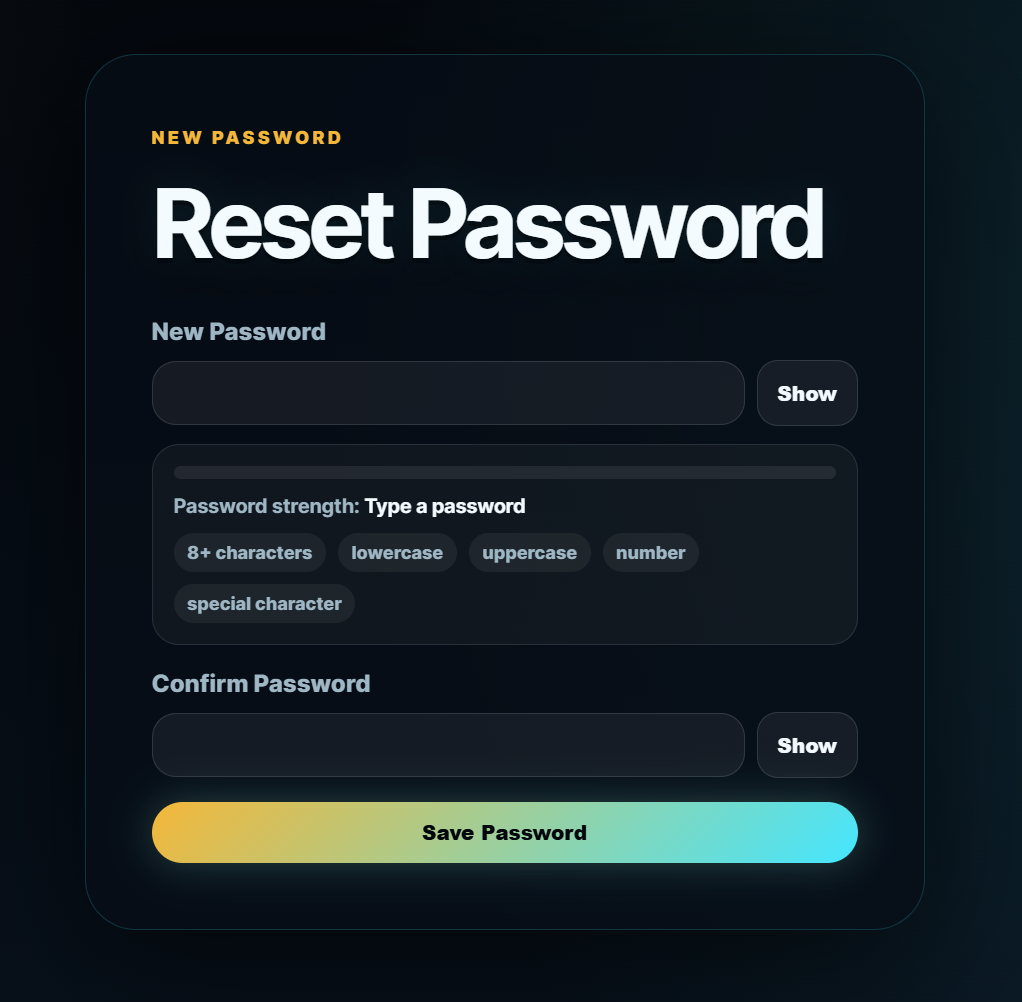
3. Create a new password
Enter your new password and confirm it. The system shows the password strength, so you can easily see whether it meets the security requirements. When ready, click Save Password.
Enter and save your new password.
4. Log in with the new password
After the password has been changed successfully, return to the login page and sign in with the new password. If you still cannot log in, open a support ticket and include your Phantom Scripts username or order ID.
Details
Access to the email address used for your Phantom Scripts account.
The reset link is valid for a limited time, so use it as soon as possible.
Your new password should be strong: at least 8 characters with lowercase, uppercase, number and special character recommended.
If the email does not arrive, also check your Spam / Junk folder.
Notes
The Forgot password link is available on the login page.
The button inside the reset email opens the password reset page.
The system shows password strength in real time.
After saving, you can log in with your new password.
ImportantFor security, never send your password in a support ticket, Discord message or email. The Phantom Scripts team will never ask for your password.
SHOP SYSTEMS
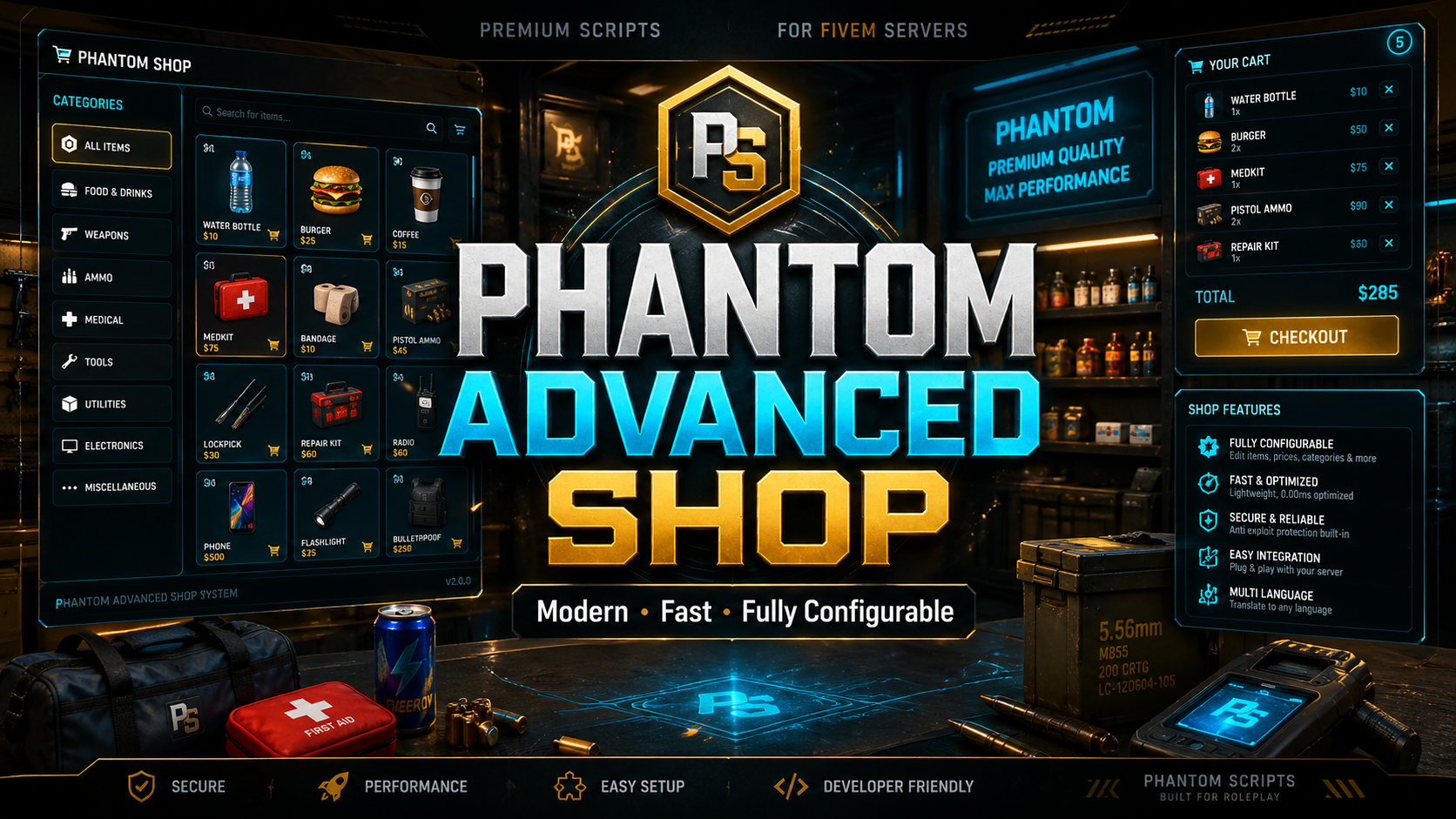
Phantom Advanced Shop System
A free fully configurable in-game shop creator system for FiveM servers with SQL saving, custom products, blips, markers and admin tools.
v1.0.010 May 2026
Overview
Phantom Advanced Shop System is a powerful free in-game shop creator for FiveM servers. Server owners and admins can create unlimited custom shops directly inside the game, configure products, prices, item names, weights, blips, markers and shop locations without manually editing files. Shops are saved into SQL and remain available after server restarts. The system includes a modern admin panel, a lightweight player shop UI, multi-language support and framework/inventory bridge support for different server setups.
Installation
Download the resource. • Upload it to your resources folder. • Import the included SQL table. • Configure framework, inventory, target and language settings. • Add ensure phantom-advanced-shop to server.cfg and restart the server.
Configuration
Config.Framework = auto / qb / qbox / esx / standalone • Config.Inventory = qb / ox / esx / custom • Config.Locale = en / hu and other supported languages
Shop storage
Shops can be saved using SQL/JSON storage depending on the configuration. Keep editable shop data outside escrow when customers need to edit it.
Framework and inventory
Supported frameworks and inventory bridges are listed in the resource README. QBCore and QBox commonly use qb/ox inventory, while ESX can use ESX inventory or ox_inventory depending on the config.
Import the included SQL files, then add the content of items.lua_snippet.txt to your inventory system. For ESX inventory, use low weight values such as 0.1, 0.2, 0.5 or 1.0.
Version checker
The resource checks the Phantom Resources version endpoint on startup and prints a server console message when a newer version is available.
Before updating, back up your config, locale files and database. Replace the resource files, run any included migration SQL, then restart the resource.
Details
FiveM server
QBCore, ESX, QBox or Stand-Alone setup
MySQL/MariaDB database
Inventory bridge configured for your server
Notes
Create unlimited shops directly in-game
Modern admin management panel
Clean and lightweight player shop UI
SQL database saving with persistent shops after restart
Custom products with display names, item names, price, weight and item type
Custom blips and world markers
Multi-language support
QBCore, QBox, ESX and Standalone bridge structure
ImportantDetails are available on the product page.
A premium FiveM hunting system with license, gear, hunting zones, animal hunting, NPC shop and selling flow.
v1.0.010 May 2026
Overview
PS Hunting Script is a premium hunting resource created for serious FiveM roleplay servers. Players can create a hunting license, complete the required interview and shooting test, buy hunting equipment, sign in for the hunt, place bait, hunt animals inside the configured hunting zone, skin them with a knife and sell the collected rewards at the marked selling point. The rifle can only be used inside the active hunting zone and is automatically put away when the player leaves the area.
Installation
Upload the resource to your resources folder. • Add ensure ps-hunting to server.cfg. • Configure framework, inventory, target and notify system. • Set hunting zones, NPCs, shop items, rewards and selling locations. • Restart the server and test the full license to selling flow.
Configuration
Configure hunting license settings and required score. • Configure shooting test requirements. • Configure animal types, rewards, zones and selling prices. • Configure weapon restrictions and map blips.
qb_huntingstore map
Default hunting shop coordinates are configured for the qb_huntingstore map/interior. If you do not use that map, move the shop NPC coordinates in the config.
Framework and inventory
Supported frameworks and inventory bridges are listed in the resource README. QBCore and QBox commonly use qb/ox inventory, while ESX can use ESX inventory or ox_inventory depending on the config.
Import the included SQL files, then add the content of items.lua_snippet.txt to your inventory system. For ESX inventory, use low weight values such as 0.1, 0.2, 0.5 or 1.0.
Version checker
The resource checks the Phantom Resources version endpoint on startup and prints a server console message when a newer version is available.
Before updating, back up your config, locale files and database. Replace the resource files, run any included migration SQL, then restart the resource.
Details
FiveM server
QBCore, ESX or QBox framework
qb-inventory / ox_inventory / ESX inventory depending on setup
qb-target or ox_target depending on setup
Notes
Hunting license system
Question/interview test with required pass score
Shooting range test with successful hit requirement
Hunting equipment shop
Dynamic hunting zone shown on the map
Bait placement and animal waiting flow
Animal skinning with knife
Configurable rewards such as meat, leather, fur and items
ImportantDetails are available on the product page.
A free fast coordinate helper for FiveM developers with quick coordinates and manual placement tools.
v1.0.010 May 2026
Overview
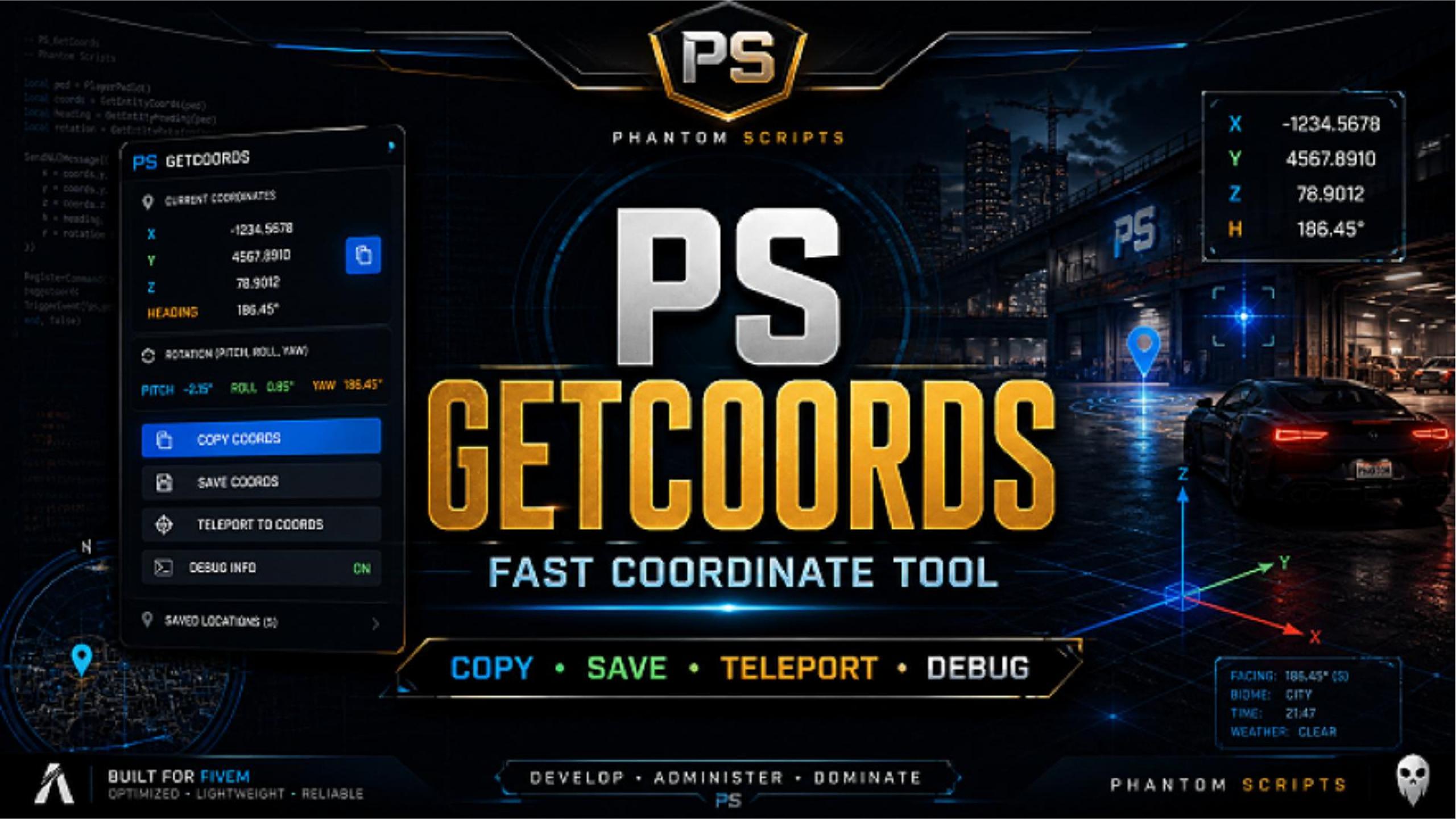
PS GetCoords is a lightweight free FiveM utility made for developers, server owners and admins who need quick access to accurate coordinates. It includes Quick Coordinates for instantly capturing the current position, plus Manual Placement helpers for standing humans, sitting humans, objects and icons. Move, rotate and adjust height with keyboard controls, then press Enter to receive clean copy-ready coordinate data.
Installation
Upload ps-getcoords to your resources folder. • Add ensure ps-getcoords to server.cfg. • Start the server and use /getcoords in-game.
Configuration
Configure permissions if required by your server. • Adjust command access and helper settings if included.
No items or SQL required
PS GetCoords is a standalone helper resource. It does not require inventory items or SQL import.
Framework and inventory
Supported frameworks and inventory bridges are listed in the resource README. QBCore and QBox commonly use qb/ox inventory, while ESX can use ESX inventory or ox_inventory depending on the config.
Import the included SQL files, then add the content of items.lua_snippet.txt to your inventory system. For ESX inventory, use low weight values such as 0.1, 0.2, 0.5 or 1.0.
Version checker
The resource checks the Phantom Resources version endpoint on startup and prints a server console message when a newer version is available.
Before updating, back up your config, locale files and database. Replace the resource files, run any included migration SQL, then restart the resource.
Details
FiveM server
Standalone resource setup
Notes
Quick Coordinates mode
Manual Placement mode
Standing Human placement helper
Sitting Human placement helper
Object placement helper
Icon and marker placement helper
Copy-ready coordinate formats
Keyboard movement, rotation and height controls
ImportantDetails are available on the product page.
An advanced restaurant management system with menus, tables, seats, recipes, storage, employees and orders.
v1.0.010 May 2026
Overview
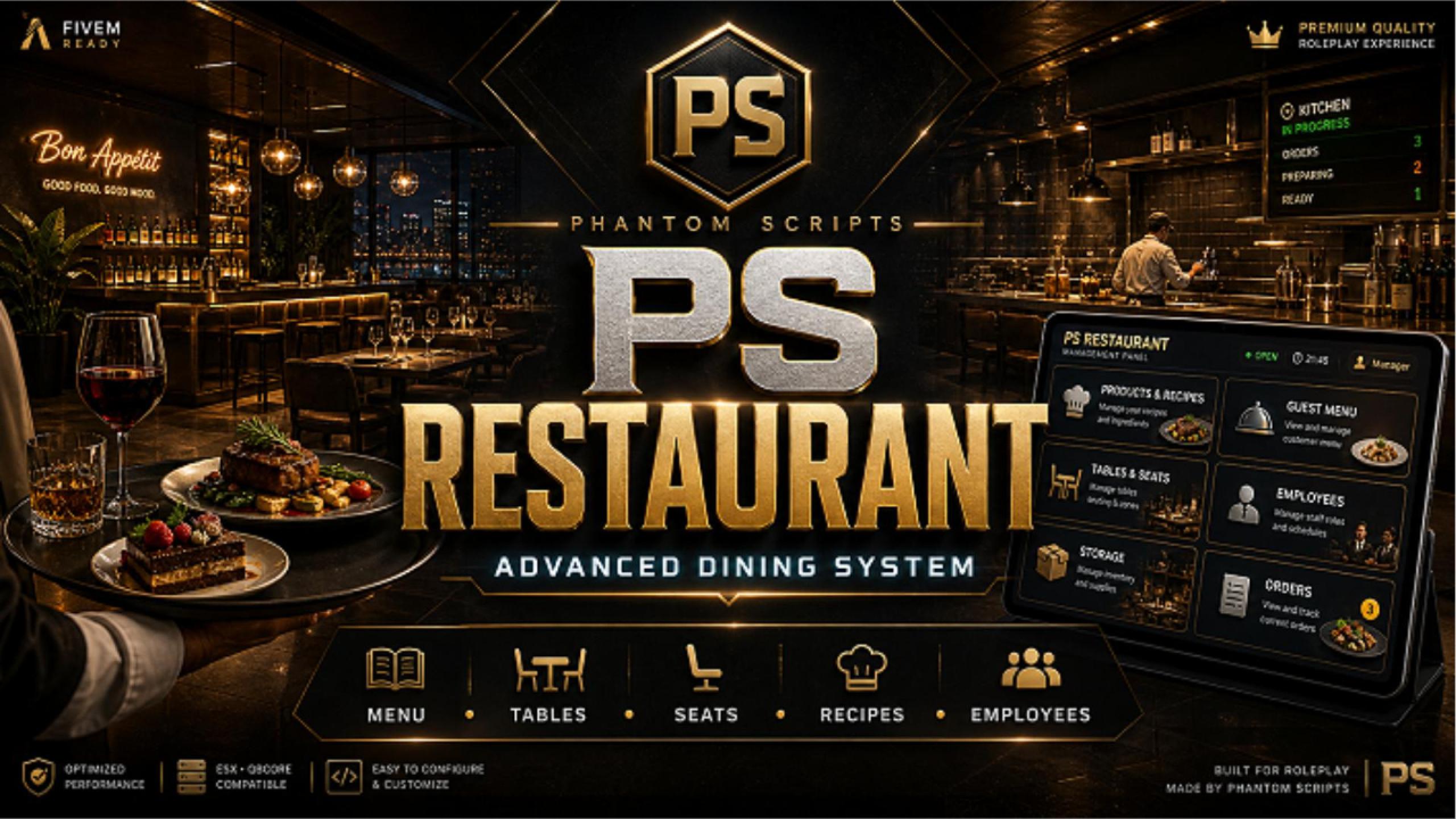
PS Restaurant is a premium FiveM restaurant management system built for serious roleplay servers. Restaurant owners can manage products and recipes, build guest menus, create categories and discounts, set up tables and seats with precise coordinate helpers, manage employees and outfits, handle storage, prepare food, drinks and cocktails, and serve completed orders from a tray system. When connected with PS Farm, restaurants can order fresh ingredients directly from player-owned farms.
Installation
Upload ps-restaurant to your resources folder. • Import the included SQL if provided. • Configure framework, jobs, inventory and restaurant settings. • Set up menu, storage, tables, seats and preparation areas. • Add ensure ps-restaurant to server.cfg and restart the server.
Configuration
Configure the restaurant job and staff permissions. • Set up menu categories, products and recipes. • Configure table/seat zones and storage settings. • Enable PS Farm ordering if you use the farm supply system.
PS Farm orders
The farm order integration is optional. PS Farm / ps-greenhouse is only required when restaurants order fresh produce from farms.
Framework and inventory
Supported frameworks and inventory bridges are listed in the resource README. QBCore and QBox commonly use qb/ox inventory, while ESX can use ESX inventory or ox_inventory depending on the config.
Import the included SQL files, then add the content of items.lua_snippet.txt to your inventory system. For ESX inventory, use low weight values such as 0.1, 0.2, 0.5 or 1.0.
Version checker
The resource checks the Phantom Resources version endpoint on startup and prints a server console message when a newer version is available.
Before updating, back up your config, locale files and database. Replace the resource files, run any included migration SQL, then restart the resource.
Details
FiveM server
QBCore, ESX or QBox framework
MySQL/MariaDB database
Configured inventory and job setup
PS Farm is required only for restaurant-to-farm orders
Notes
Boss Management Hub
Products and recipes management
Guest menu builder with categories and discounts
Tables and seats setup with coordinate helper
Employee, outfit and permission management
Storage for ingredients
Kitchen preparation areas
Food, drink and cocktail crafting
ImportantDetails are available on the product page.
An advanced player-owned farming system with crops, quality, storage, employees, market selling and restaurant orders.
v1.0.010 May 2026
Overview
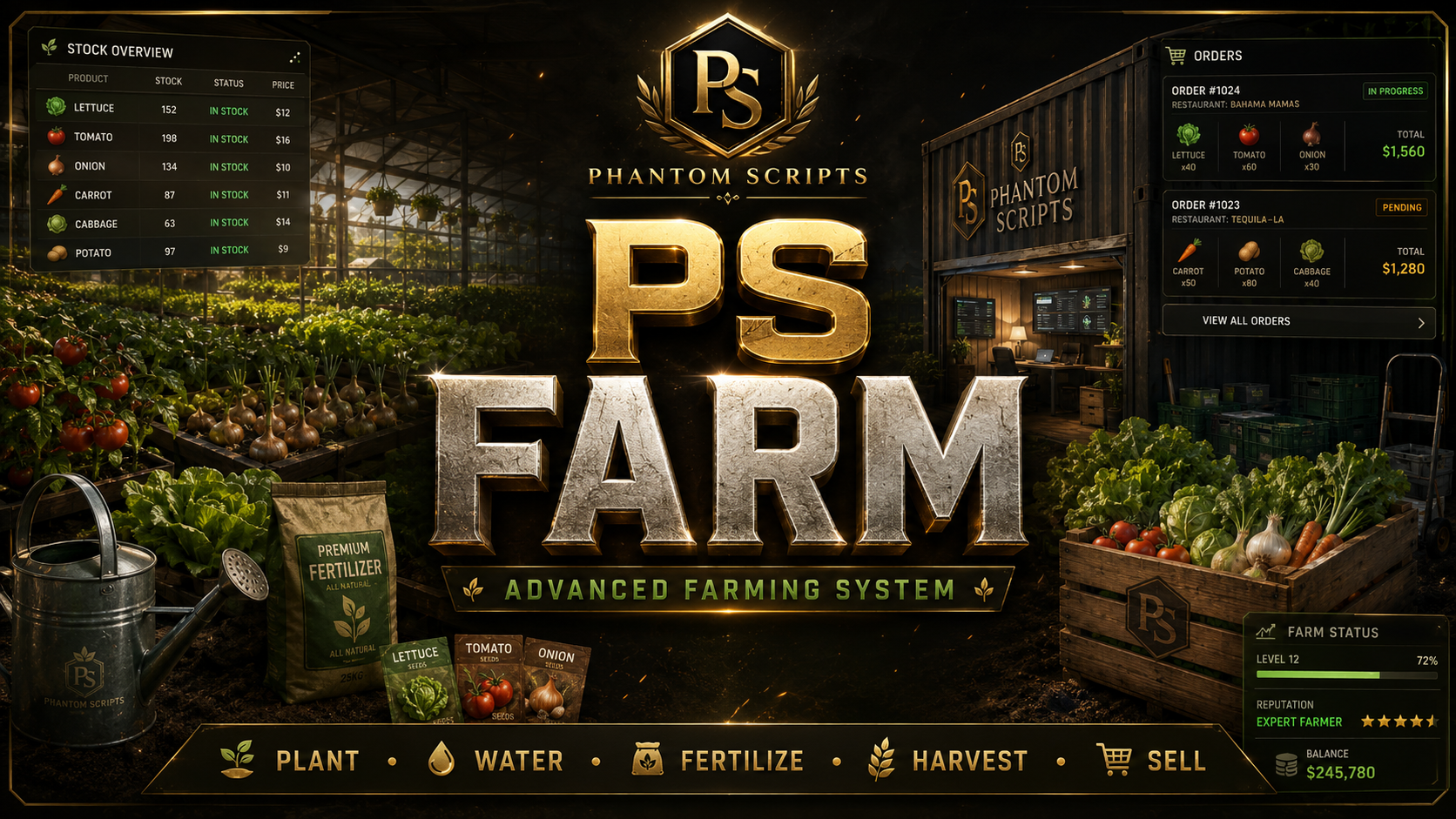
PS Farm is an advanced farming system for FiveM roleplay servers. Admins can create farm entrances anywhere with /greenhouseadmin, set farm names, sizes and prices, then players can buy farms, rename them, sell them, hire employees and manage permissions. Players plant vegetables and fruits, water and fertilize them, harvest premium or lower-quality crops, manage storage, set product prices, complete restaurant orders through PS Restaurant integration and sell remaining products at the market.
Installation
Upload ps-farm to your resources folder. • Import the included SQL if provided. • Configure framework, inventory, farm sizes, prices, crops and market buyer. • Add ensure ps-farm to server.cfg and restart. • Create farms in-game with /greenhouseadmin.
Configuration
Configure crop growth time, yield and quality rules. • Configure farm purchase prices and sizes. • Configure restaurant order integration if PS Restaurant is used. • Configure market buyer prices for crop quality levels.
Crop quality and orders
Premium and poor quality products are handled as separate items. Restaurant orders can pay more, while the market buyer uses fixed config prices.
Framework and inventory
Supported frameworks and inventory bridges are listed in the resource README. QBCore and QBox commonly use qb/ox inventory, while ESX can use ESX inventory or ox_inventory depending on the config.
Import the included SQL files, then add the content of items.lua_snippet.txt to your inventory system. For ESX inventory, use low weight values such as 0.1, 0.2, 0.5 or 1.0.
Version checker
The resource checks the Phantom Resources version endpoint on startup and prints a server console message when a newer version is available.
Before updating, back up your config, locale files and database. Replace the resource files, run any included migration SQL, then restart the resource.
Details
FiveM server
QBCore, ESX or QBox framework
Inventory system for seeds, tools and crops
PS Restaurant required only for restaurant orders
Notes
Admin farm creation with /greenhouseadmin
Player-owned farms with rename and sell options
Employee hiring and permission management
Crop planting with seeds, water and fertilizer
Growth time and yield information
Crop quality system
Storage for harvested products
Farm office laptop for stock, prices and orders
ImportantDetails are available on the product page.
A realistic wholesale store system for restaurants, fast-food places, cafés, bars and hospitality businesses.
v1.0.010 May 2026
Overview
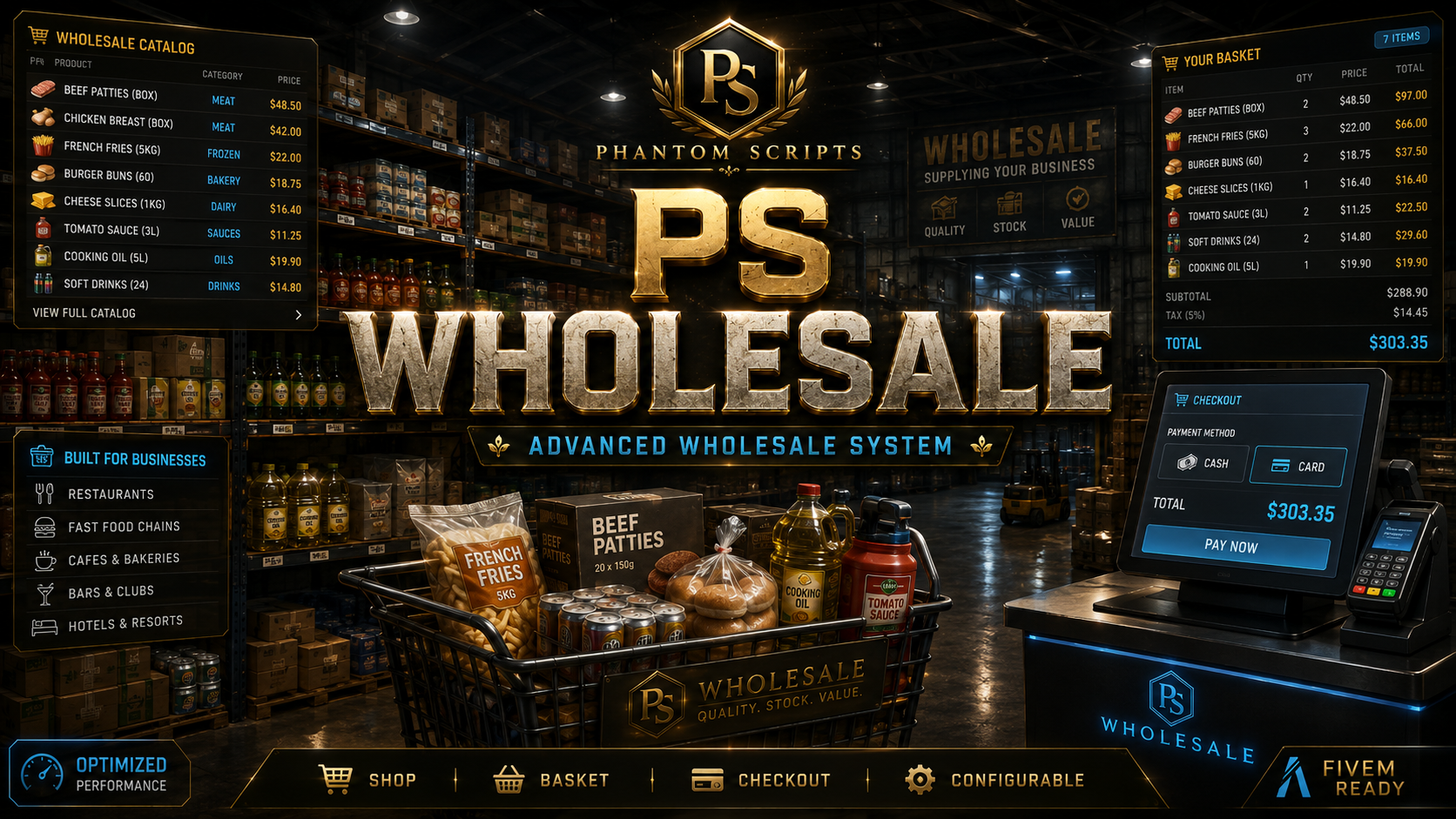
PS Wholesale is a realistic wholesale store system built for restaurants, fast-food places and other hospitality businesses on FiveM roleplay servers. Players can take products from shelves, place them into their basket, adjust item quantities at checkout, choose cash or card payment and receive all purchased items directly into their inventory. If a player tries to leave without paying, the basket is cleared and they leave empty-handed.
Installation
Upload ps-wholesale to your resources folder. • Configure framework, payment and inventory settings. • Add products, shelf positions and checkout locations in config. • Add ensure ps-wholesale to server.cfg and restart.
Configuration
Configure all products and shelf positions. • Configure checkout locations and payment options. • Configure inventory item names and quantities.
ESX item weight
Do not use QBCore-style 500 or 1500 weight values with ESX inventory. Use low values such as 0.1, 0.5 or 1.0.
Framework and inventory
Supported frameworks and inventory bridges are listed in the resource README. QBCore and QBox commonly use qb/ox inventory, while ESX can use ESX inventory or ox_inventory depending on the config.
Import the included SQL files, then add the content of items.lua_snippet.txt to your inventory system. For ESX inventory, use low weight values such as 0.1, 0.2, 0.5 or 1.0.
Version checker
The resource checks the Phantom Resources version endpoint on startup and prints a server console message when a newer version is available.
Before updating, back up your config, locale files and database. Replace the resource files, run any included migration SQL, then restart the resource.
Details
FiveM server
QBCore, ESX or QBox framework
Inventory system configured for the sold items
Notes
Realistic wholesale store flow
Products can be taken from shelves
Basket system
Checkout system
Cash and card payment options
Adjust quantity at checkout
Purchased items added to inventory
Anti leave-without-paying system
ImportantDetails are available on the product page.
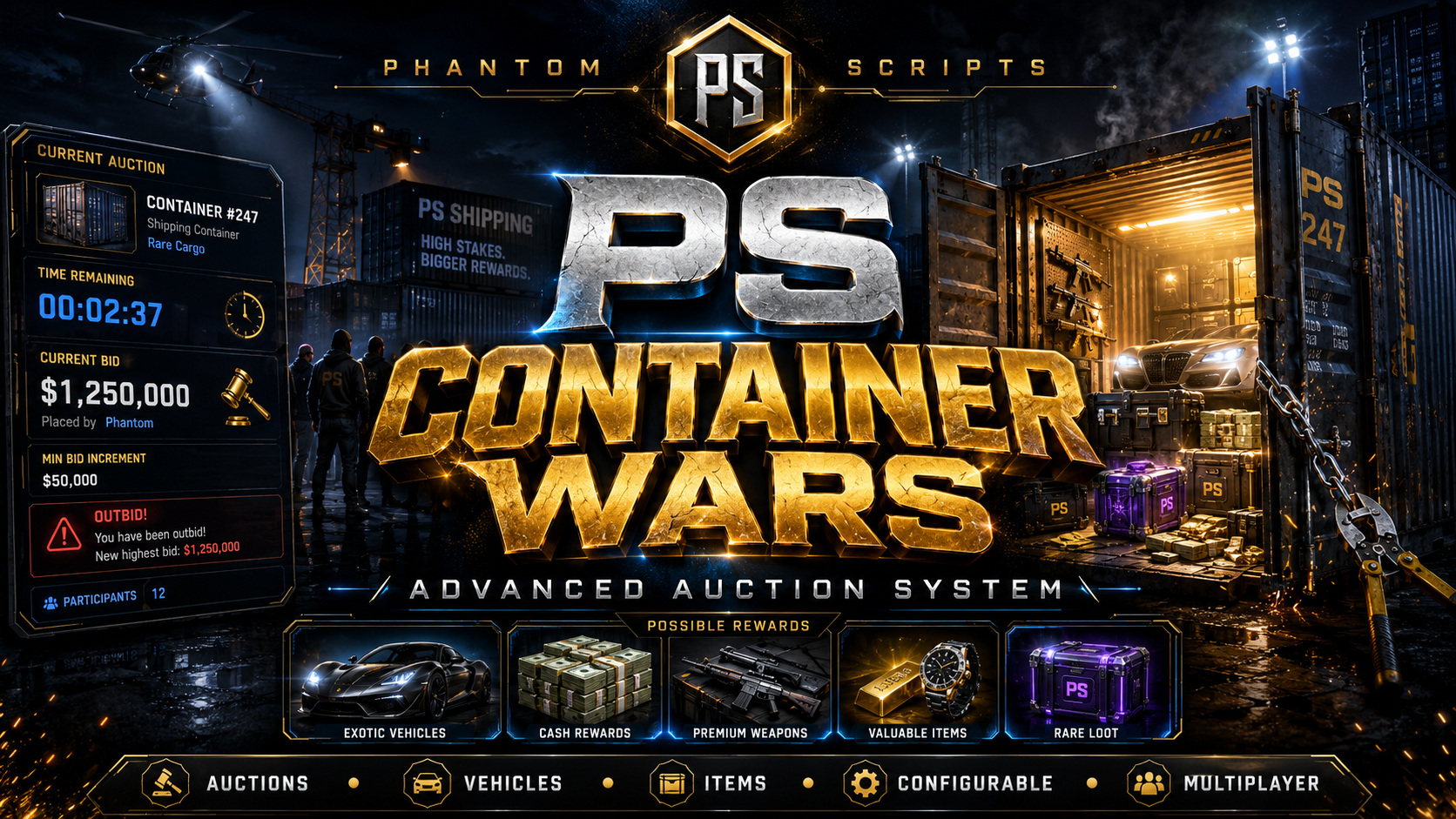
An advanced container auction event system with configurable vehicles, items, bidding, outbid alerts and winner rewards.
v1.0.010 May 2026
Overview
PS Container Wars is an advanced high-stakes container auction system for FiveM roleplay servers. Admins can start auctions with /startauction and choose how many containers are available, up to 8 by default, or reset the system with /resetcontainerauctions. Players open containers, join the auction panel with E, place bids, receive outbid notifications, compete with timer extensions in the final seconds and claim vehicles or items from the container after winning.
Installation
Upload ps-container-wars to your resources folder. • Configure framework, containers, rewards, auction time, starting bid and bid increments. • Add ensure ps-container-wars to server.cfg and restart. • Use /startauction to create auctions in-game.
Configuration
Configure reward mode: vehicles, items or mixed. • Configure allowed vehicles and items. • Configure auction duration, starting price and bid increment. • Configure timer extension and container locations.
Admin commands
Use the admin commands listed in the README to start and reset auctions, for example /startauction and /resetcontainerauctions.
Framework and inventory
Supported frameworks and inventory bridges are listed in the resource README. QBCore and QBox commonly use qb/ox inventory, while ESX can use ESX inventory or ox_inventory depending on the config.
Import the included SQL files, then add the content of items.lua_snippet.txt to your inventory system. For ESX inventory, use low weight values such as 0.1, 0.2, 0.5 or 1.0.
Version checker
The resource checks the Phantom Resources version endpoint on startup and prints a server console message when a newer version is available.
Before updating, back up your config, locale files and database. Replace the resource files, run any included migration SQL, then restart the resource.
Details
FiveM server
QBCore, ESX or QBox framework
Inventory and vehicle reward setup configured for your server
Notes
Admin auction creation with /startauction
Custom number of auction containers
Maximum of 8 containers by default
/resetcontainerauctions reset command
Interactive lock cutting and container opening
Auction panel access with E
Configurable auction time, starting bid and bid increment
Vehicle-only, item-only or mixed containers
ImportantDetails are available on the product page.
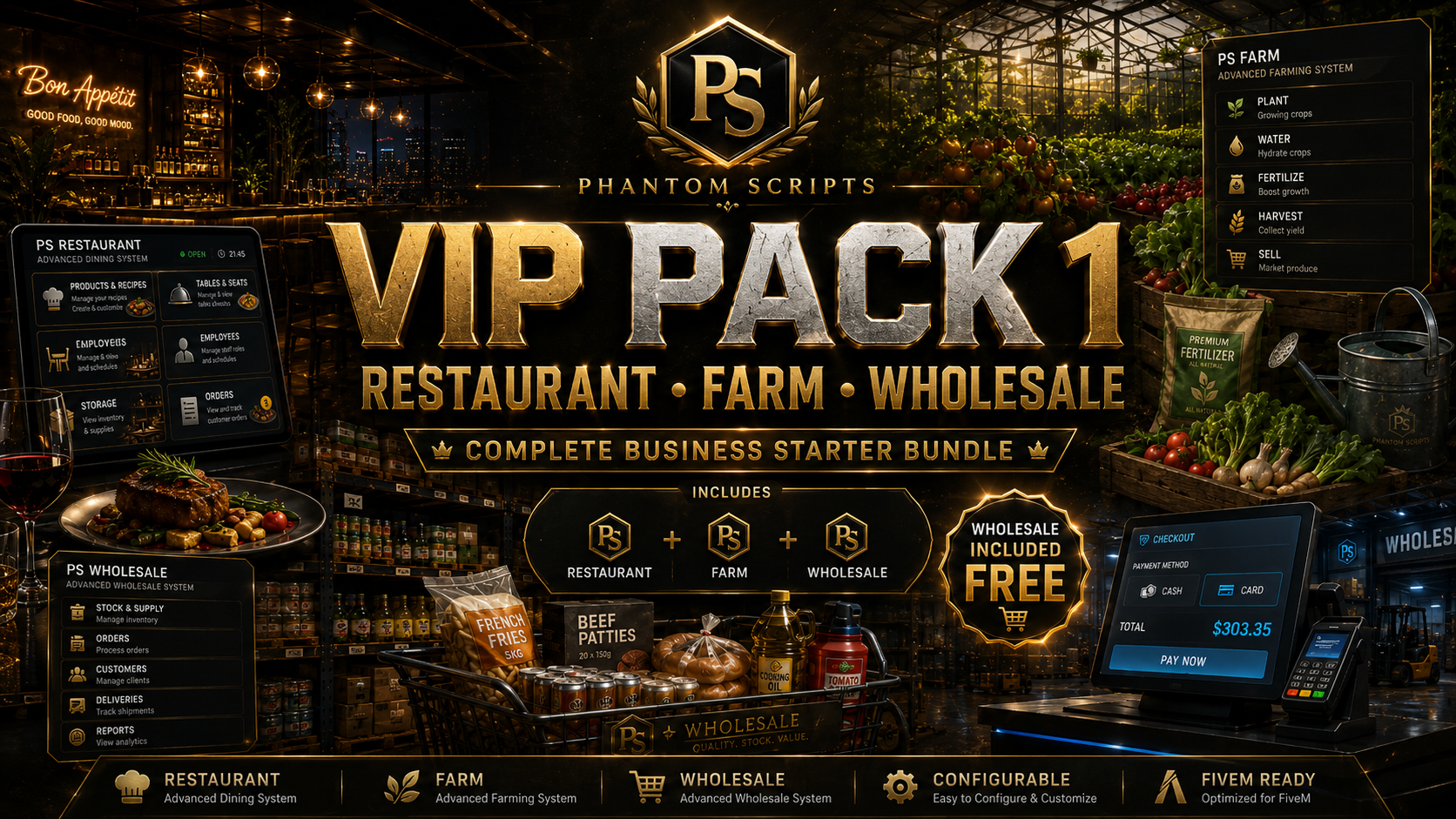
A discounted business bundle containing PS Restaurant, PS Farm and PS Wholesale, with PS Wholesale included for free.
v1.0.010 May 2026
Overview
VIP Pack 1 is a business-focused Phantom Scripts bundle for serious FiveM roleplay servers. The pack includes PS Restaurant, PS Farm and PS Wholesale. The package price is £39.80, which means you pay for PS Restaurant and PS Farm, and PS Wholesale is included for free. This creates a complete business supply chain: farms grow ingredients, restaurants use them for recipes and orders, and wholesale stores provide realistic stock purchasing for hospitality businesses.
Installation
Install PS Restaurant, PS Farm and PS Wholesale individually. • Import any included SQL files. • Configure shared item names and ingredients across all three resources. • Start the resources in the correct order inside server.cfg. • Test farm orders, restaurant storage and wholesale purchasing.
Configuration
Keep ingredient item names consistent between Farm and Restaurant. • Configure wholesale items to match your server inventory. • Configure restaurant menus and recipes after setting farm products.
Framework and inventory
Supported frameworks and inventory bridges are listed in the resource README. QBCore and QBox commonly use qb/ox inventory, while ESX can use ESX inventory or ox_inventory depending on the config.
Import the included SQL files, then add the content of items.lua_snippet.txt to your inventory system. For ESX inventory, use low weight values such as 0.1, 0.2, 0.5 or 1.0.
Version checker
The resource checks the Phantom Resources version endpoint on startup and prints a server console message when a newer version is available.
Before updating, back up your config, locale files and database. Replace the resource files, run any included migration SQL, then restart the resource.
Details
FiveM server
QBCore, ESX or QBox framework
Inventory setup for restaurant, farm and wholesale items
Notes
Includes PS Restaurant
Includes PS Farm
Includes PS Wholesale for free
Complete restaurant and farm supply chain
Business and economy roleplay ready
Restaurants can order fresh products from farms
Wholesale store supports hospitality stock purchasing
Better value than buying separately
ImportantDetails are available on the product page.